
How To Install VMware:
Download the VMware setup from the link given below.
Click Here
Once you download the installer, Open the folder where the Vmware Workstation installer was downloaded. Right-click the installer and click Run as administrator.
Moreover, follow the steps as shown.
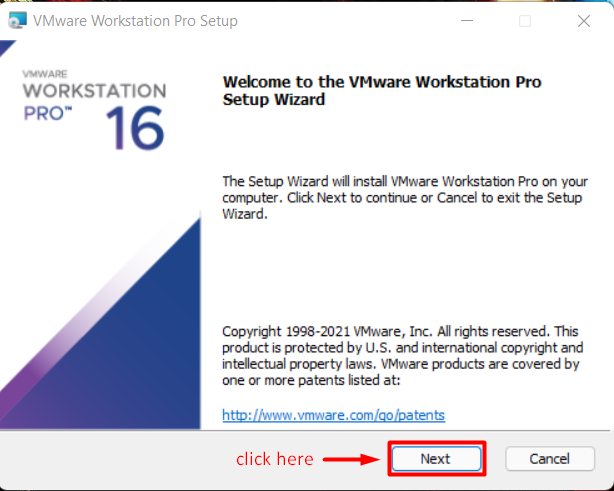
Click on Next
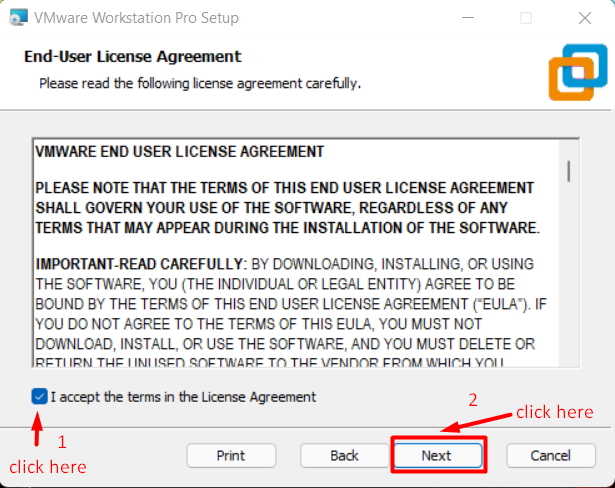
Click on the check box and click on Next.
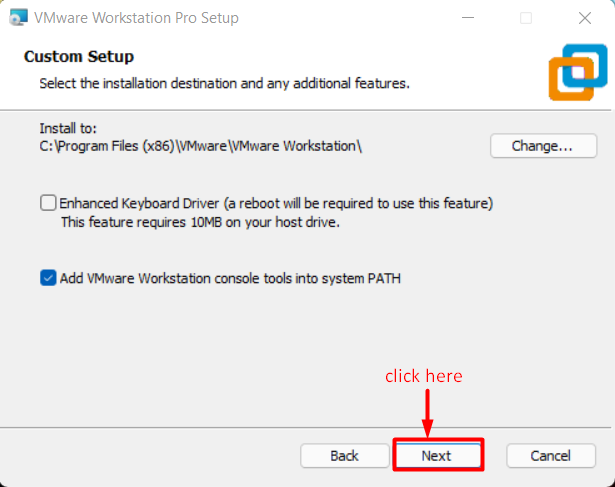
Click on Next.
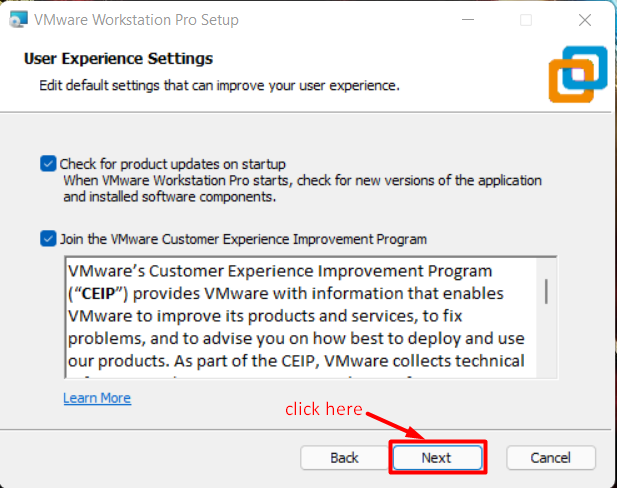
Click on Next.
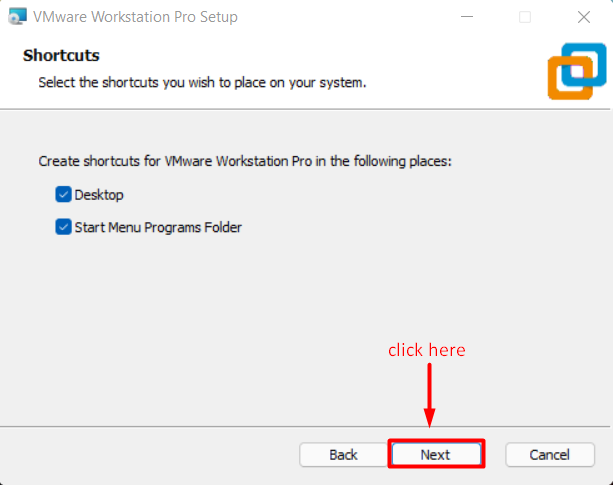
Make sure you click the checkboxes to get a desktop shortcut, a quick launch shortcut, or a combination of these options, in addition, to the Start Menu item, and then click on Next.
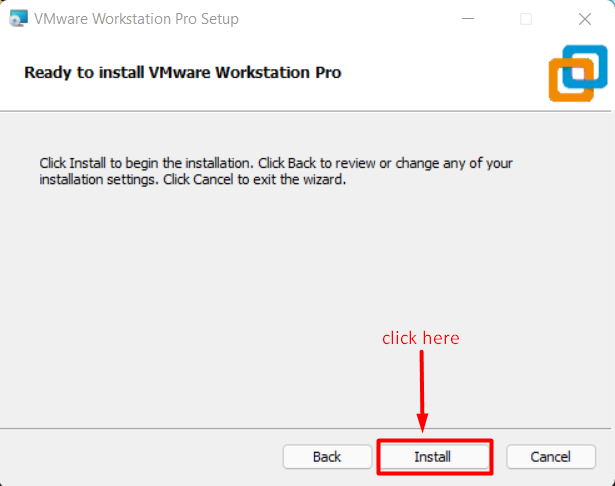
Click on Install and wait until the installation gets completed.
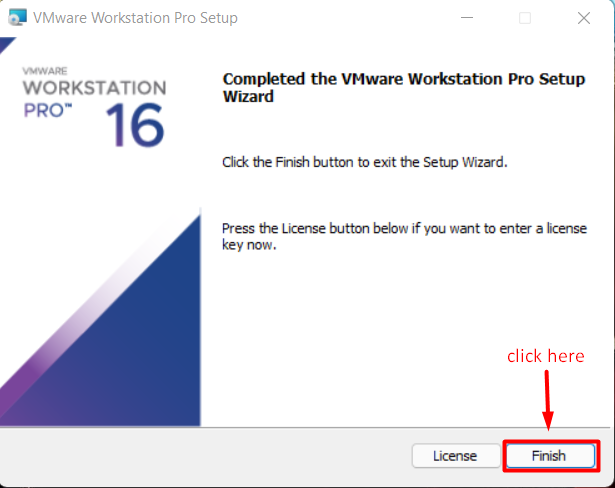
Once the installation is completed, click on finish.
Now open the VMware Workstation Pro
To start VMware Workstation on a Windows host system, select Start > VMware Workstation.
You can Activate the VMware Workstation using the keys below.
ZF3R0-FHED2-M80TY-8QYGC-NPKYF
YF390-0HF8P-M81RQ-2DXQE-M2UT6
ZF71R-DMX85-08DQY-8YMNC-PPHV8
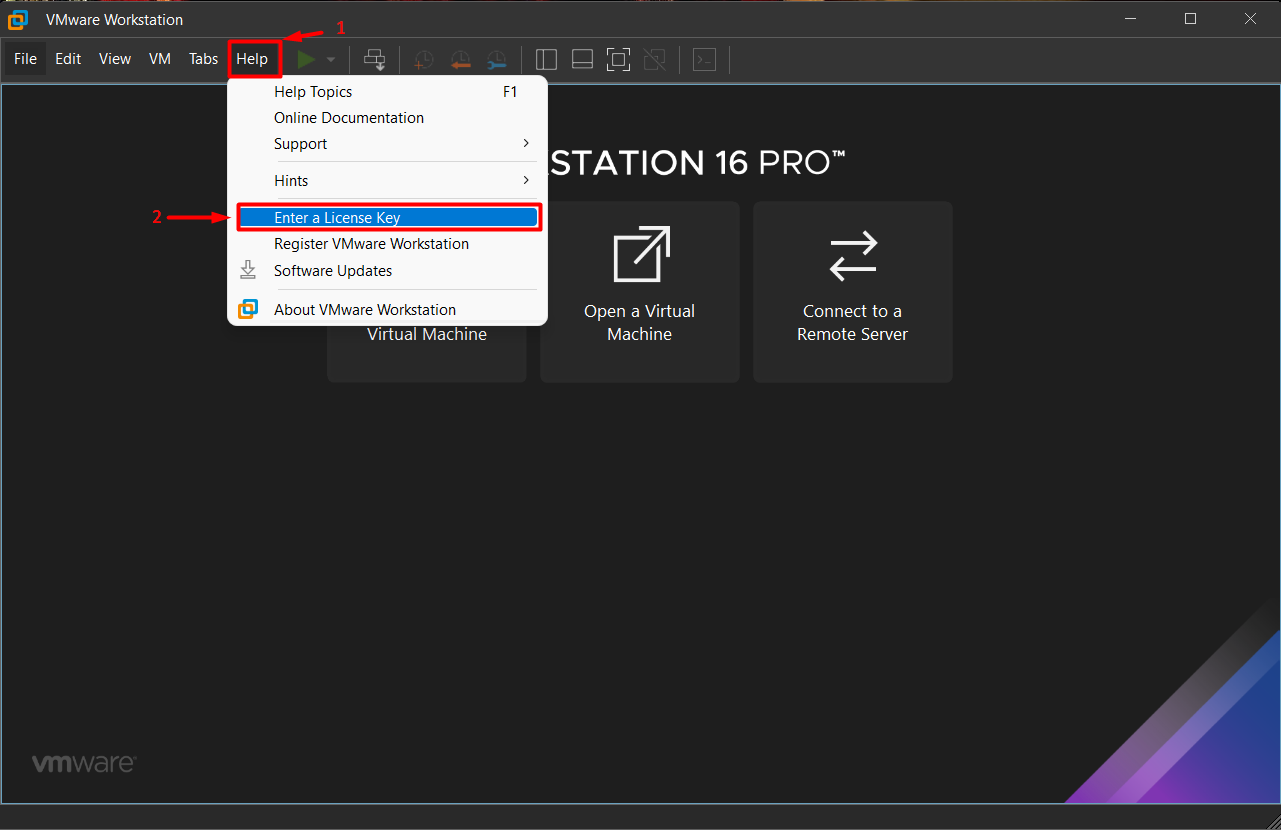
Click on the Help menu and select the Enter a License Key option.
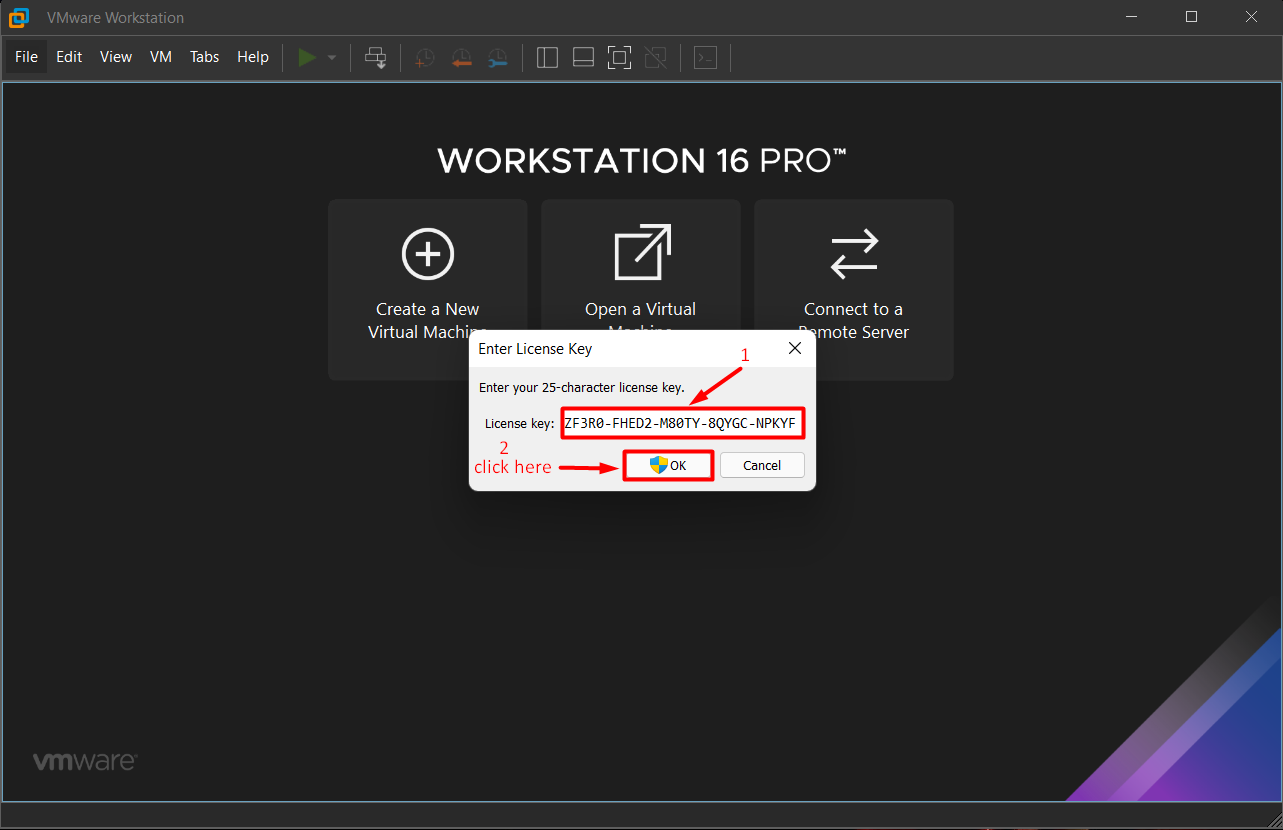
Now enter the License Key and click on OK. Now restart the host machine and enjoy your VMware Workstation pro.
Referral Link:
https://www.vmware.com/in/products/workstation-pro/workstation-pro-evaluation.html
This is for now :) Thanks for reading! Make sure you subscribe to the blog for more upcoming Articles!
NOTE: The awesome artwork used in this article was created by @VMware Design.